
Recent Articles


Subscribe to RSS feed

What is a Database Management System or DBMS?
June 8th, 2009 by Shenron

The Database Management system or DBMS is also called a file or database manager that allows users to have access to a database. When a person uses a database manager system, he has the opportunity to understand where the necessary data are located. The Database Management System manages the user’s request to access a database and its data on other related programs.

All about Database Management Systems

A database system is a compilation of information in collaboration with a set of program in order to access the data. The primary objective of using this kind of system is to establish a convenient and efficient working environment.

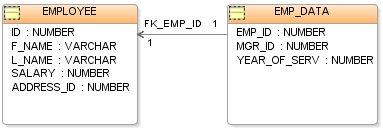
Database Tables

A database management system is used to manage large files. In using the database system, you must understand that this system will aid in storing and manipulating important information. Moreover, this kind of system also contributes to the safety of your files against system crashes or unauthorized access. In certain circumstances where a person needs to share a data, the system will make sure that there will never be an incidence of file corruption.

The Special Features of Database Management Systems

The database management system has played its role in developing new tools to help businessmen and software developers in storing and manipulating important information. Today, the DBMS has special features that would allow users to effectively store, manipulate and share codes and procedures without any complexity.

Here are the special features of the DBMS:

  1. The ability to process queries. The term “querying” is the method of accessing information from different locations or programs. For instance, if a user wants to gather data on the status of his business, he can use the query language that will allow him to have access on the database, and in the same way; the database system analyzes the data and revise it in accordance with the user’s privileges.
  2. The ability to backup and replicate files. It is important to create a backup source of files in case there’s any equipment failure. The DBMS provides the amenities to extract and share the attributes set. The data is then copied to two database servers so that the information remains consistent in the system.
  3. The ability to establish rules on attributes. If a user wants his attributes or information to become reliable, then the DBMS will allow you to place a rule on your attributes. For instance, you only want each mobile phone network to only provide one particular unit model associated with them. If another user wants to change the facts, then the DBMS will deny the access. However, the DBMS also allows users to modify the rules on the attributes.
  4. The ability to secure the attributes. Often, users would only want to put a limit on who can see and manage their attributes. The DMBS allows users to place a security on their attributes so that only a number of reliable people may have access to the attributes.
  5. The ability to compute the attributes. Common computations like sorting and grouping are required for most attributes. That’s why users depend on the DBMS to help them on such calculations.

Related Posts:

Posted in DBMS, Scripts | | 0 Comments

Installing your first Wordpress script

December 9th, 2008 by Shenron

Now that we’ve created the database and added an user to it, we can actually get going and install the script (wordpress).

Wordpress Logo

Understanding the basics

Right, first of all we will explain the basic format of a database and username, as this is confusing to a lot of newbies, it took me a while to get used to it.

useraccount_databasename

Your hosting account username ALWAYS comes before the databasename followed by the underscore “_” to avoid confusion you could always call the name the database the same as your account name so say your hosting account name was “JonDoe” you would put JonDoe, so it would show as JonDoe_JonDoe

useraccount_databaseuser

The database username is slightly different as the database user is what your script uses to add entries or tables into the database, or even to query the database and as with the database name your hosting account username always comes first followed by the “_” underscore.

Again for ease of use you could name the database user the same as your hosting account name however we will call it “dbadmin” so you can tell them appart. So it would be typed as JonDoe_dbadmin

Table Prefixes

Some scripts use a table prefix within the database itself for example SMF uses the prefix smf_ some scripts will allow you to change this prefix however you don’t really need to, if it has one preset then just leave it as is. Prefixes also help the user identify which entries belong to which script or installation.

Database Hostname

This is simply the hostname used to connect to whatever database your using in 99% of cases it will be localhost and a lot of scripts nowadays will already have this set but it can always be changed to whatever the hostname is.

Installation

Right now that we understand the basic format of the database name and username we can begin to install the script, for this tutorial we will be installing wordpress as it’s probably one of the most used scripts which is also by far the easiest to install but for a complete novice understanding what to put in for the database related fields can be daunting.

Step 1: Creating Config File

If you want wordpress to create the config file itself then you can click this and if it works you will be taken to the next step however if not you will need to make a simple change to your permissions. Log into cpanel then click file manager, next navigate to the folder wordpress is in which will be in your public_html folder(probably just called wordpress) and then select it it and click change permissions on the panel at the top and set to 777. Now go back to the wordpress install script and try creating the config file again, if you’ve uploaded wp to the public_html folder then simply follow the above process but this time select your public_html folder.

Step 2: Configuration

As we have explained the database format to you earlier in this tutorial you should now have a much better understanding of what to enter.

Database Name: useraccount_databasename

Username: useraccount_databaseuser

Password: password goes here (the one you generated for the database user in our previous tutorial)

Database Host: localhost

Table Prefix: wp_ (no need to change this)

Then simply hit submit.

Step 3: Admin Setup

This is pretty straightforward really and it doesn’t need much explaining as it’s self explanatory, just enter your blog name, email and bobs your uncle. Don’t forget to keep your admin password somewhere safe as it is generated by the installation script but you can easily change it once you log in to something more memorable.

Congratulations!

Well done you just installed your first script, not that hard is it?

Most scripts follow the same format for the database side of things during installation so for future reference you can use the following as a guide although some scripts may not always follow this format.

Related Posts:

Posted in General, How To, Scripts | | 0 Comments

Create your first Mysql database

December 9th, 2008 by Shenron

Installing a script (like wordpress for example) can seem a daunting task to newbies, with all those different fields you have to fill in and to which you don’t have a clue about.

Don’t fret, we will guide you through the process of creating a new database and installing that script.

Step 1

This much you should have already figured out by now, log into cpanel and select MySQL Databases there are other types of databases but we dont need those for now.

Logo Mysql / Sun

Step 2

You should see a text area which says above it “Create New Database” yup you guessed it you put the name of the database in here and click create. Keep it simple as chances are you will have to enter it into your script at somepoint, say for example your installing vbulletin, just call it something like forum . Easy peasy so far huh?

Step 3

This is where it starts to get more complicated. Go back to the previous page and then scroll down and you should see an option further down the page which says “Add new User” and like naming the database itself keep the username simple. Then create a password, for extra security it’s probably best if you generate one but you should note this down using notepad or something as you will more than likely need to enter it  uring your script installation after then you probably wont need it again but you can always retreive it from your scripts config file.

Step 4

Now we hit the back button again and this time we need to add the user to the database lets say you named it forum. Scroll down the page where you should see the option “Add user to Database” , now provided you haven’t created any other databases you shouldn’t have to select the database to add the user to, or vice versa however if you have simply select your database and user you just created from the drop down and click add.

Step 5

Were almost there chaps. Now you will have to give your database username whatever privileges you want it o have, this is more for the advanced user who wants extra security but most of you wont really need to configure these privelages so just click the ALL PRIVILEGES check box and then click make changes.

Congratulations!

You’ve just created your first database now navigate on to the next part of our tutorial to find out how to install your first script.

Related Posts:

Posted in General, How To, Mysql, Scripts | | 4 Comments

Categories

Archives